

🕛 Estimated Read Time: 2 minutes and 49 seconds.
For the Sleekgeek 21-Day Step Challenge, we’ll be using the free app, HabitShare, to track your consistency towards achieving your steps goal.
NOTE: HabitShare is NOT a steps-tracking app, it’s a habit-tracking app. So it won’t automatically sync your steps from your phone or smart device. You’ll be using the app to track “Yes” or “No” as to whether you achieved your steps goal for the day.
This challenge is all about building the habit of getting more steps in throughout the day.
We don’t care if you’re walking 5,000 steps a day or 15,000 steps a day.
We don’t care if your friend or another community member is doing better than you or worse than you.
All we care about is whether you’re showing up each day and consciously working towards your personal steps goal.
Habit tracking, using an app like this, is the best way to successfully build and maintain new habits. It puts health at the top of your agenda each day and keeps you accountable.
We’ll be explaining a bit more about how the challenge works and what you should do when Day 1 starts, but in the meantime, you can find instructions below on how to download and set up HabitShare so that you’re ready to go.
👉1) Download HabitShare:
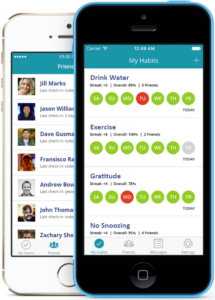
- Download HabitShare for iOS here.
- Download HabitShare for Android here.
Sleekgeek is not affiliated or involved with HabitShare in any way. It’s just a convenient and free app that we recommend because it’s simple, reliable, and effective.
👉2) Create your account:
The first thing you’ll see after downloading HabitShare is the option to sign up or log in.
Click on “Sign Up” (unless you already have an account, in which case you can click Log In).
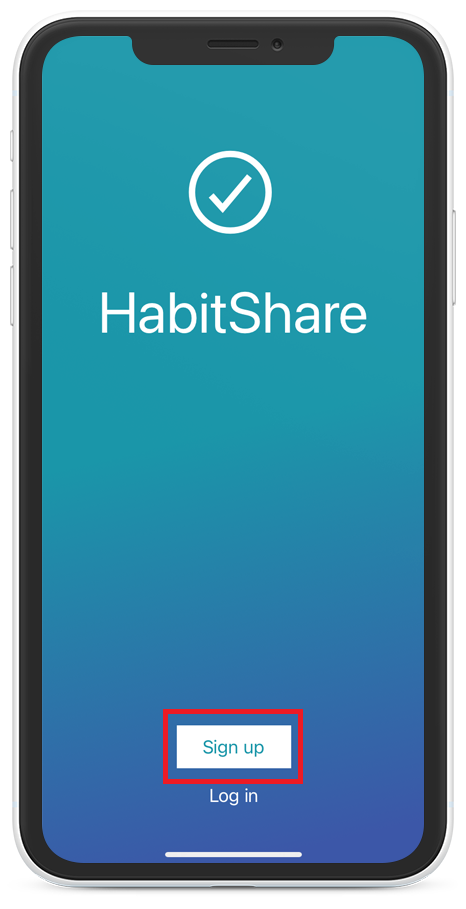
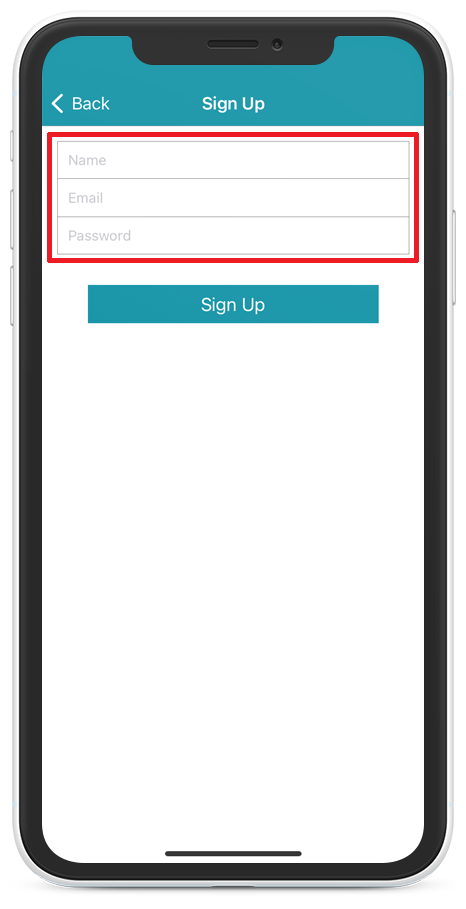
Enter your name, email address, and a password for your account.
Please use your real name because you’ll be adding Sleekgeek as a friend on the app to be eligible for prizes and we need to know who you are in order to allocate them.
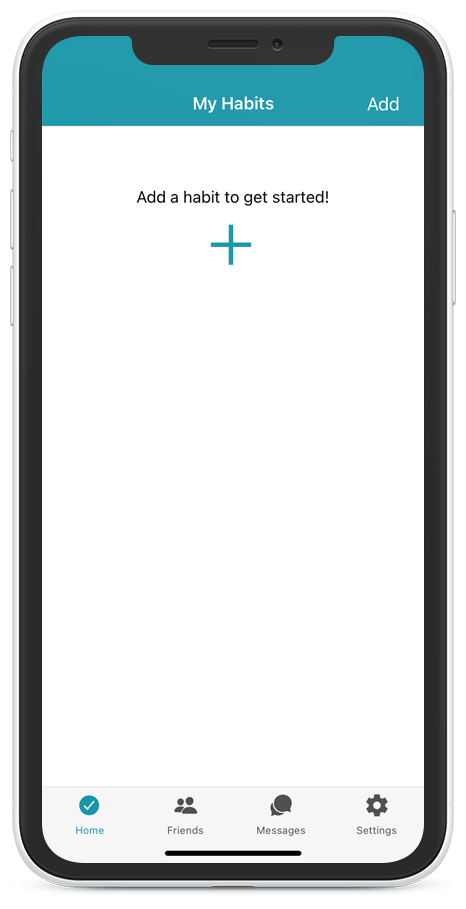
Once you’ve created an account and been logged in, you’ll see this on your home page.
👉3) Add your Steps Goal as a “habit”:
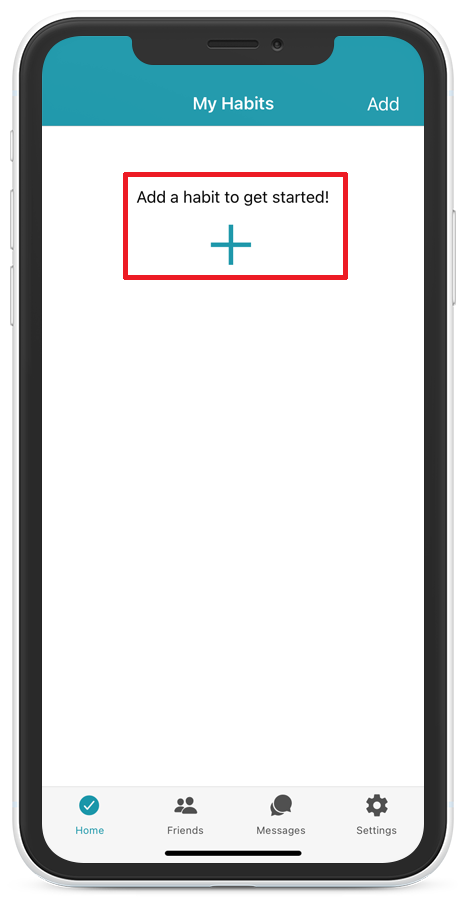
Click on the big + icon in the middle of the screen.
Enter something like “Steps Goal” as the name of your habit for now. We’ll help you pick a steps goal during the challenge and you can then come back and update this name.
OR, if you already have a specific number in mind, you can use that as the title, such as “Walk 8,000 steps”.
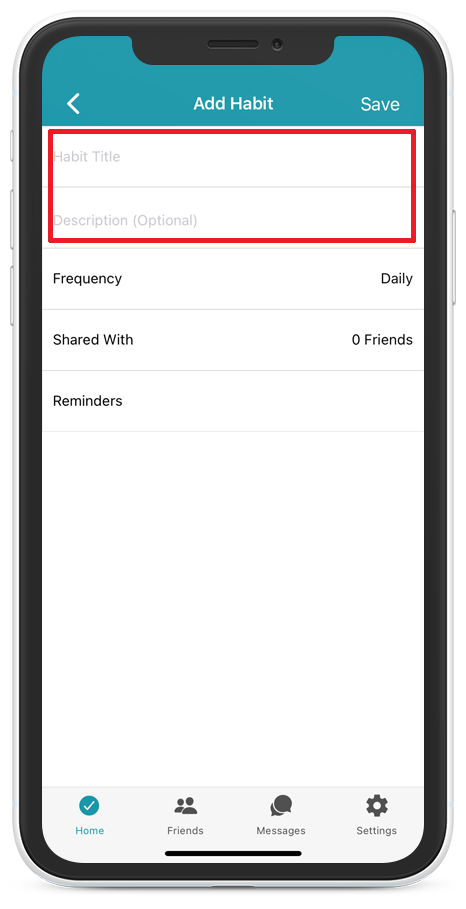
You can skip the “Shared With” option for now, but know that you’re able to share your habits with friends, family, and co-workers who also use the app if you’d like to.
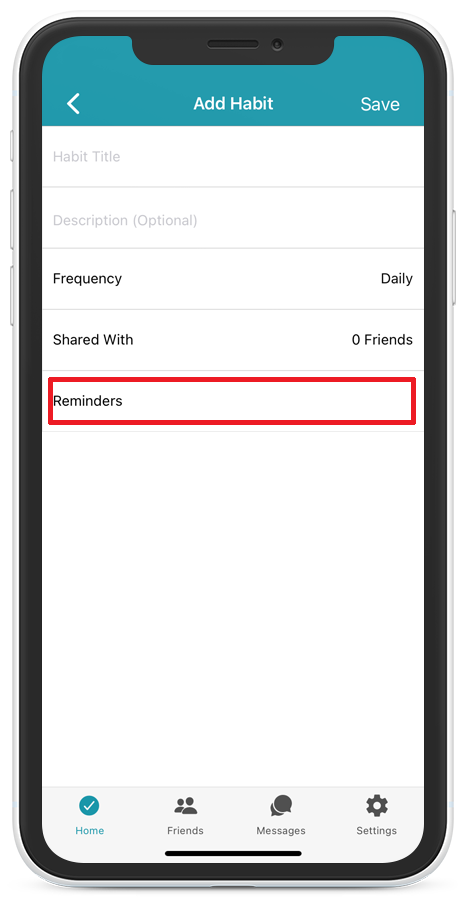
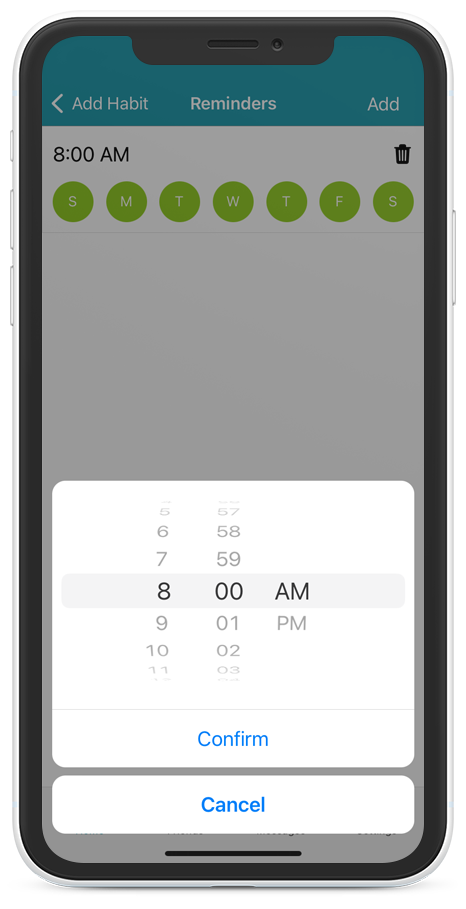
So next, click on the “Reminders” option.
Then click on “Add” in the top right.
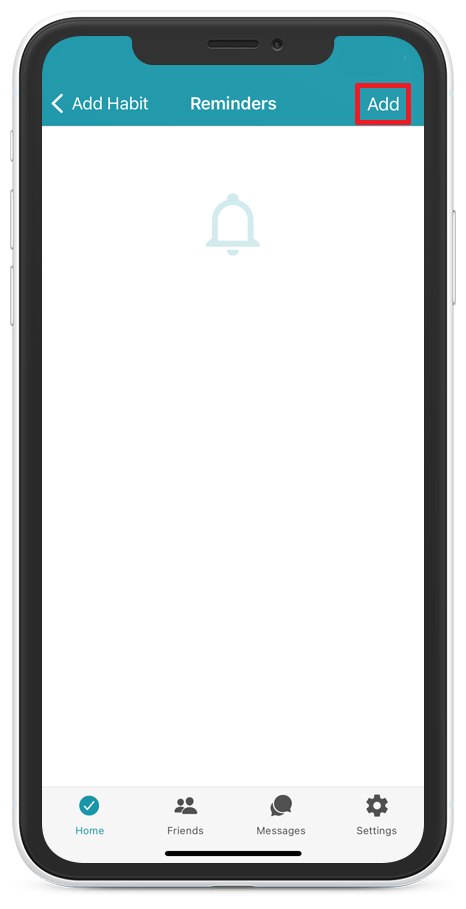
By default, the app will send you a push notification reminder for that habit every day.
You can tap on the day of the week to disable the reminder for that day (it will go from green to grey).
You can also tap on the time to adjust when you’d like to be sent the reminder.
We recommend setting up an AM notification to set your focus for the day, and a PM reminder to get you to come back and tick your habit off if you achieved your goal.
To save the reminder and go back to finish adding your habit, tap on the “Add Habit” button in the top left.
Once you are happy with your new habit’s settings, tap on the “Save” button in the top right.

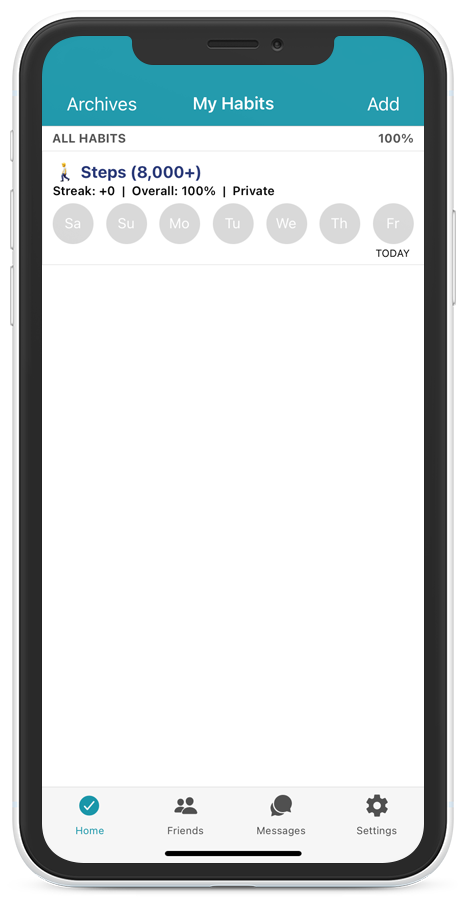
You’ll now be taken back to your HabitShare home screen and you’ll see your new habit visible there.
👉4) Track your Steps Goal as a habit:
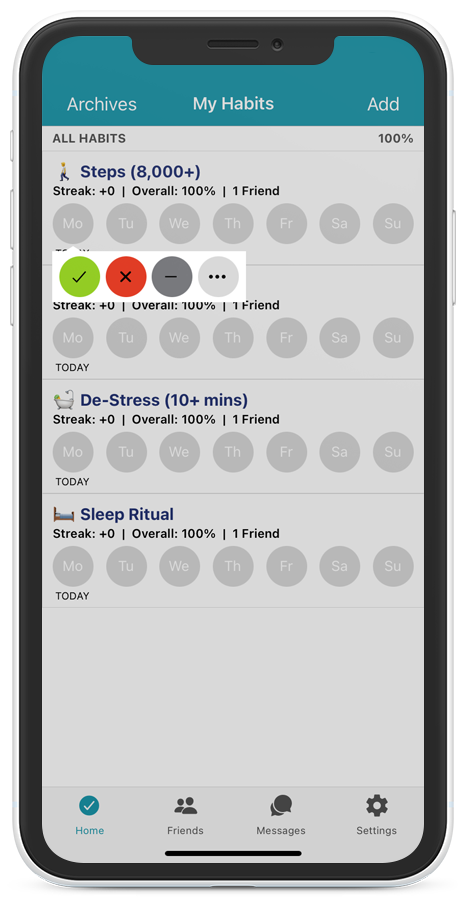
When you’re ready to start tracking your steps goal as a habit, click on the day of the week (e.g. “Mo” for Monday) and you’ll be able to select from:
- A green tick as “done” or “success”
- A red cross as “not done” or “failed”
- A grey dash as “skipped” or “not applicable”
Your end goal should be to tick off all your Steps Goal each day (as a done or not done).
Remember that acknowledging when you did NOT do your habit is almost as important as ticking it off as done because it helps you stay accountable and aware of your consistency (or lack thereof).
👉5) Add Sleekgeek as a friend
Now that you’ve added your Steps Goal as a habit, you’ll need to add the Sleekgeek account as a friend in order to share your habit with us and be entered onto the leaderboard in order to win prizes.
Click on the “Friends” tab at the bottom of your screen.
Then click on the big + icon in the middle of the screen.
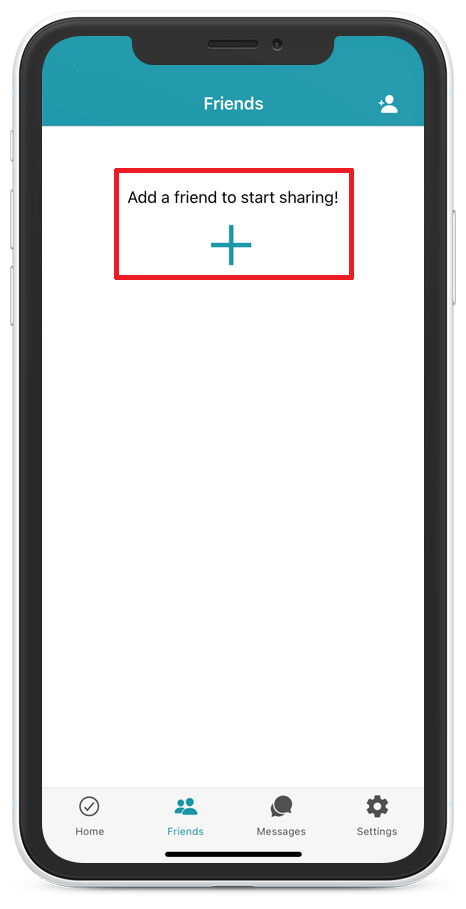
Enter challenge@sleekgeek.co.za in the search bar and then click on “Search”.
Next, click on “Send Friend Request”.
NOTE: If you’re getting an error saying, “Sorry, we don’t have a user with this email.” please make sure you don’t have any extra spaces in front or after the email address. If you still struggle to add us, then send a direct email to challenge@sleekgeek.co.za with your HabitShare account email address and we’ll add you manually from our side.
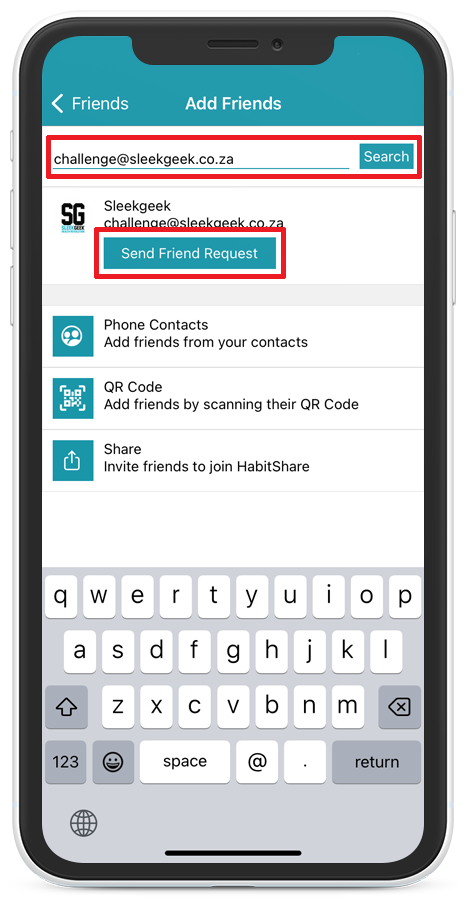
You will need to wait for Sleekgeek to accept your friend request.
Once we’ve accepted your friend request, you will receive a prompt to share your habits with us.
Click on “Yes”.
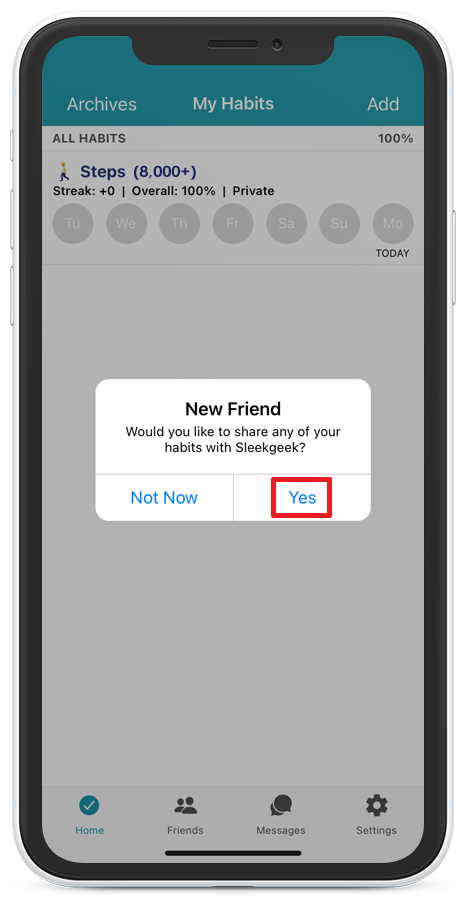
Now you can choose which habits you want to share with us (in this case, just your Steps Goal).
Click on the switch next to the habit you want to share to make the switch green.
We will now be able to see when you check-in and add you to our leaderboard for prize eligibility.
If you like the app and the idea of habit tracking, you can also add as many of your own personal habits as you’d like – but please don’t share them with us as it complicates our data gathering and reporting. We only want to see your Steps Goal habit.
You must be logged in to post a comment.